
How to add images to the comment box on WordPress.com

It is possible to add comments to the comment box on WordPress.com but not through drag-and-drop and the image needs to be hosted elsewhere. If you have your own WordPress.com site you can upload the image to your Media Library by clicking the Add button next to Media.
images1.png

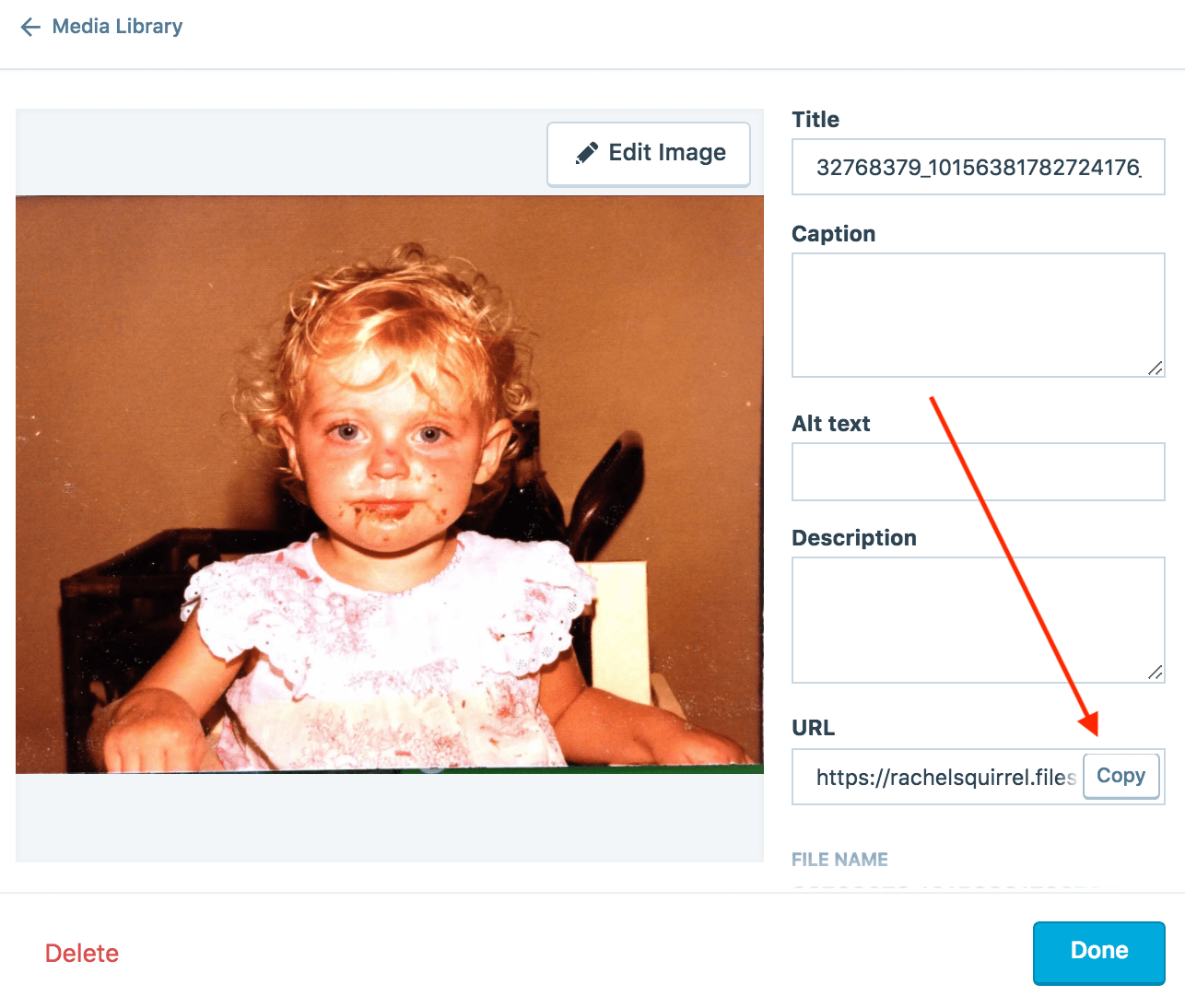
Upload your image, then select it, and click the Edit button at the top. Then click Copy.
images

This will copy the image URL to your clipboard and all you need to do now is paste it into the comment box and hit enter. You can add text before or after the image URL but make sure you don’t add it to the same line. Click Post Comment when you’re done.
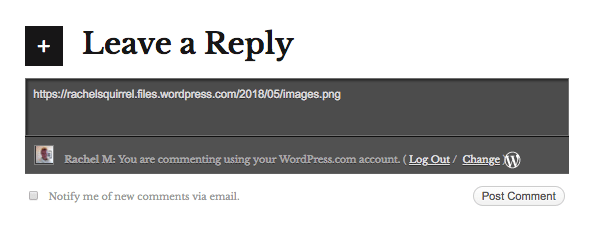
image.png

If you don’t have a WordPress.com site you can upload the image to any image sharing service like https://imgbb.com or https://droplr.com


Posted

in

by

Comments

21 responses to “How to add images to the comment box on WordPress.com”

  1. Throwback Thursday – Rachel Avatar

    […] Update I posted some instructions on how to upload images to the comment box on WordPress.com […]

    1. Rachel M Avatar

      You’re welcome! It would be much easier if we could just drag and drop directly into the comment box …

      1. Hangaku Gozen Avatar

        Yes, it would, but I’m glad to learn something new about WordPress. I have a friend who is trying to build a personal website on WP, and she’s grumbling that it’s a lot harder than it looks. I don’t know how tech-savvy she is, but I’ve found that if you’re open to the fact that this is a new skill, it’s not hard at all. Thanks again!

      2. Rachel M Avatar

        There’s definitely a learning curve with WP but it gets easier with practise.

  2. cindy knoke Avatar

    Thanks! I had no idea.

    1. Rachel M Avatar

      You’re welcome!

  3. cbegg1950 Avatar

    So that’s how you do it! Thanks, Rachel.

    1. Rachel M Avatar

      I’m glad this was helpful!

  4. Nina de Haan Avatar

    Did it work? 😀

    1. Rachel M Avatar

      It definitely works!

  5. Crystal M. Trulove Avatar

    Thank you so much!! I tried a few other sets of instructions, and nothing worked till this one! It works perfectly. Thanks!

    1. Rachel M Avatar

      You’re welcome!

  6. Sunday Stills Monthly Color Challenge: Spring #Green – Second Wind Leisure Perspectives Avatar

    […] Others will likely view the image and visit your blog. Here is how to accomplish this simple task: Sharing image In Comments or Hugh’s […]

  7. Jacqui Murray Avatar

    Sounds simple… Hmm…

    Did it work?

    1. Rachel M Avatar

      It worked! 🙂

      1. Jacqui Murray Avatar

        How funny. I guess I was too impatient the first time. Feel free to delete one of these! Thanks, Rachel for a fun lesson.

      2. Rachel M Avatar

        No worries. You’re welcome 🙂

    2. Jacqui Murray Avatar

      OK, doesn’t look like it. Hugh suggested removing the s from https:

  8. […] comment section below but aren’t sure how to do that, here are some simple tips to help out: Sharing image In Comments or Hugh’s […]

Leave a reply to Jacqui Murray Cancel reply